
Entry draft
$0.42
4s · 720p · audio off
GOOGLE FAST VIDEO ROUTE
Faster Veo drafts with optional native audio, reference-to-video runs, 4K output, and short concept loops.
Use Veo 3.1 Fast for quick text-to-video, image-to-video, reference-to-video, first-last frame tests, and 4K checks when you need lower-cost Veo iteration before moving approved shots into Veo 3.1.
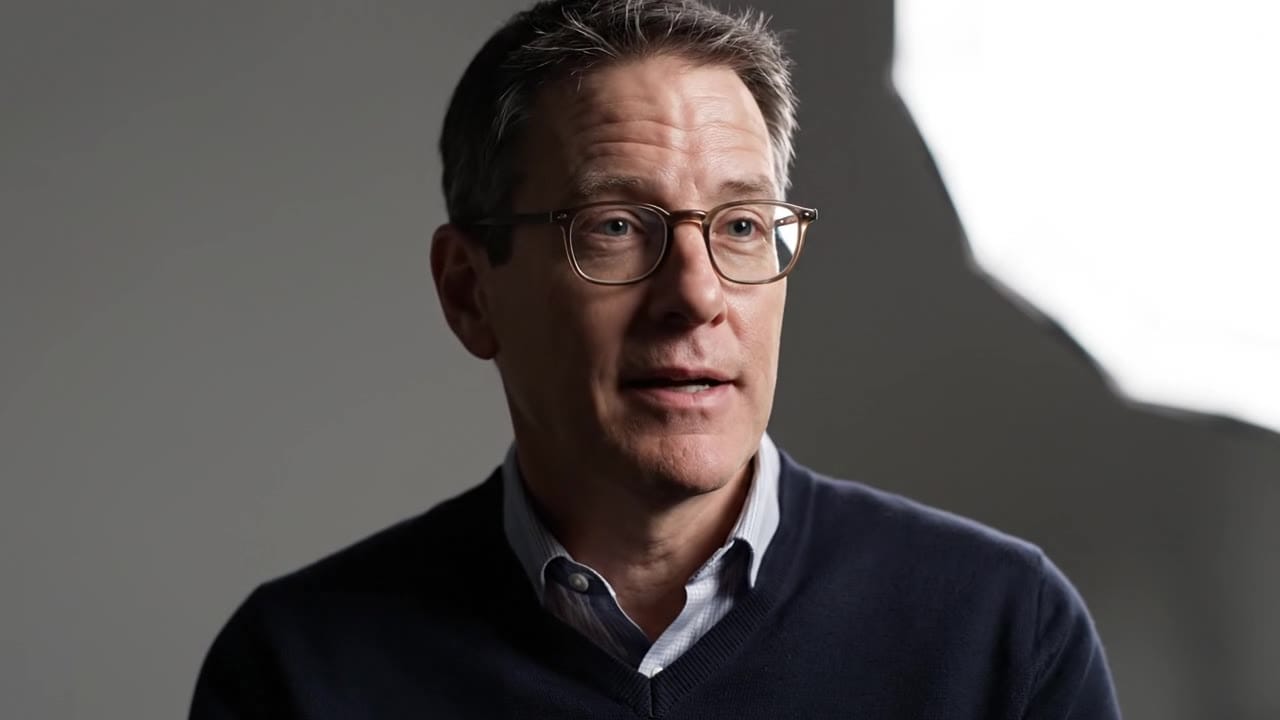
Veo 3.1 Fast example
Fast Veo draft with optional audio
Fast Veo drafts
Test concepts from 720p through 4K before paying for the main production route.
Optional audio
Toggle native audio on when timing or ambience needs a rough pass.
Reference-to-video
Attach 1-3 stills for an 8s consistency pass on identity, product or style.
First-last tests
Bridge approved opening and ending frames for short motion checks.
Extend support
Continue an existing Fast clip when a draft needs a pickup beat.
Pay-as-you-go
See exact live price before you generate.
Preset draft totals - see the exact live price in the app before you generate.
$0.42
4s · 720p · audio off
$0.78
6s · 720p · audio on
$1.25
Most popular8s · 1080p · audio on
$3.12
8s · 4k
8s
Up to 4K
All prices are MaxVideoAI display prices in USD credits for preset scenarios.
Explore clips generated with Veo 3.1 Fast using the same presets you have.
See what's possible with Veo 3.1 Fast — current Veo variant for faster drafts and iteration.
Jump into the app with one click and reuse the setup.
Dialogue, ambience and SFX generated in sync.
Keep characters, style and scene consistency across sequences.
Built-in guardrails and safety filters for responsible review.
Use Fast for prompt tests and short concept loops. Use Veo 3.1 when the selected shot needs final polish.
Use first-last frames when the opening and final composition are already approved.
Compare Fast with Lite when you are choosing between audio control and lower-cost timing tests.
Veo Fast prefers short, concrete prompts and one clear action.
Source: Google DeepMind
Test subject, camera, style and audio direction in one short Veo draft.
Use one still when framing, product shape or identity should anchor the first frame.
Attach 1-3 stills when identity, wardrobe, product or style continuity matters.
Use 4K on selected Fast runs when you need to inspect detail before the production route.
Provide a landing frame when the ending pose or composition matters.
Turn audio on for rough timing, or off when you only need visual motion.
Use 1–2 sentences when you want fast Veo variants.
8s 16:9 Veo 3.1 Fast draft of a product founder walking through a rainy neon street, slow handheld tracking move, blue storefront reflections, audio on with city ambience and one short calm line.
8s 16:9 Veo 3.1 Fast draft of a product founder walking through a rainy neon street, slow handheld tracking move, blue storefront reflections, audio on with city ambience and one short calm line.
Subject: Presenter in a late-night desk scene • Action: Looks up from a laptop and delivers one calm line
Camera: Medium close-up, slow handheld drift • Style: Cool city window light with a warm desk lamp
Audio: Soft typing, city hum, short voice line
8s 16:9 Veo 3.1 Fast draft of a presenter working late at a minimalist desk, city lights blurred through a large window.
Camera: medium close-up with a slow handheld drift, staying on the face, hands and laptop.
Lighting: cool blue window light mixed with a warm desk lamp.
Audio: soft typing, low city hum and one short calm line.

Veo 3.1 Fast is most reliable when you write a short shot brief: one subject, one action, clear framing, and one camera move.
Two routes, one series. Pick the right one for your stage.
View Veo 3.1 details →These side-by-side comparisons break down price, resolution, audio, speed, and motion style so you can pick the right engine fast.
Each page includes real outputs and practical best-use cases.
Generate fast cinematic AI videos with LTX-2 Fast. Text and image to video with synchronized audio, up to 4K, ideal for rapid iteration and social content.
Compare Veo 3.1 Fast vs LTX Video 2.0 Fast →Generate fast AI video with LTX 2.3 Fast on MaxVideoAI. Text and image workflows support 6–20s clips, 1080p/1440p/4K, native audio, and 25/50 fps options.
Compare Veo 3.1 Fast vs LTX 2.3 Fast →Generate cinematic Veo 3.1 videos with text prompts, start-image animation, multi-reference guidance, optional last-frame control, and extend workflows in one unified MaxVideoAI model page.
Compare Veo 3.1 Fast vs Google Veo 3.1 →The limits that shape your renders.
Built for rapid testing and volume when you need ideas fast. Use it to explore hooks, angles, and pacing.
The same prompt structure upgrades cleanly to the premium tier. Treat Fast as your draft layer.
Built-in safeguards and best practices for responsible creation with Veo 3.1 Fast.
Yes. Veo 3.1 Fast supports quick text-to-video runs, Image-to-Video from one start image, and 8s Reference mode with 1-4 stills when you want to compare prompts, framing, identity, and timing before finaling in Veo 3.1.
Use Fast for exploration, social variants and internal reviews; switch to Veo 3.1 for final hero shots and paid media.
Yes. Veo 3.1 Fast supports 16:9, 9:16, and 1:1 at 720p or 1080p. Choose 9:16 for mobile-first placements and 1:1 for square social crops.
Yes. Clone a Veo 3.1 render, change engine to Veo 3.1 Fast, keep framing/tone presets, and adjust length/resolution.
Use the pricing card for preset MaxVideoAI display totals: each scenario states duration, resolution and audio on/off. Specs use the same helper for per-second display rates, and Generate shows the exact live quote before you run variants.
Yes. It uses the same MaxVideoAI wallet/workspace and licensed DeepMind routing—no separate billing needed.


