
Entry draft
$1.56
4s · 720p
OPENAI PRO VIDEO MODEL
Higher-resolution finals, audio control and reference-guided image-to-video for polished short-form production.
Use Sora 2 Pro when a selected Sora concept needs the current Pro route: 720p or 1080p delivery, text-to-video or image-to-video generation, optional native sound, and final-quality review loops inside MaxVideoAI.
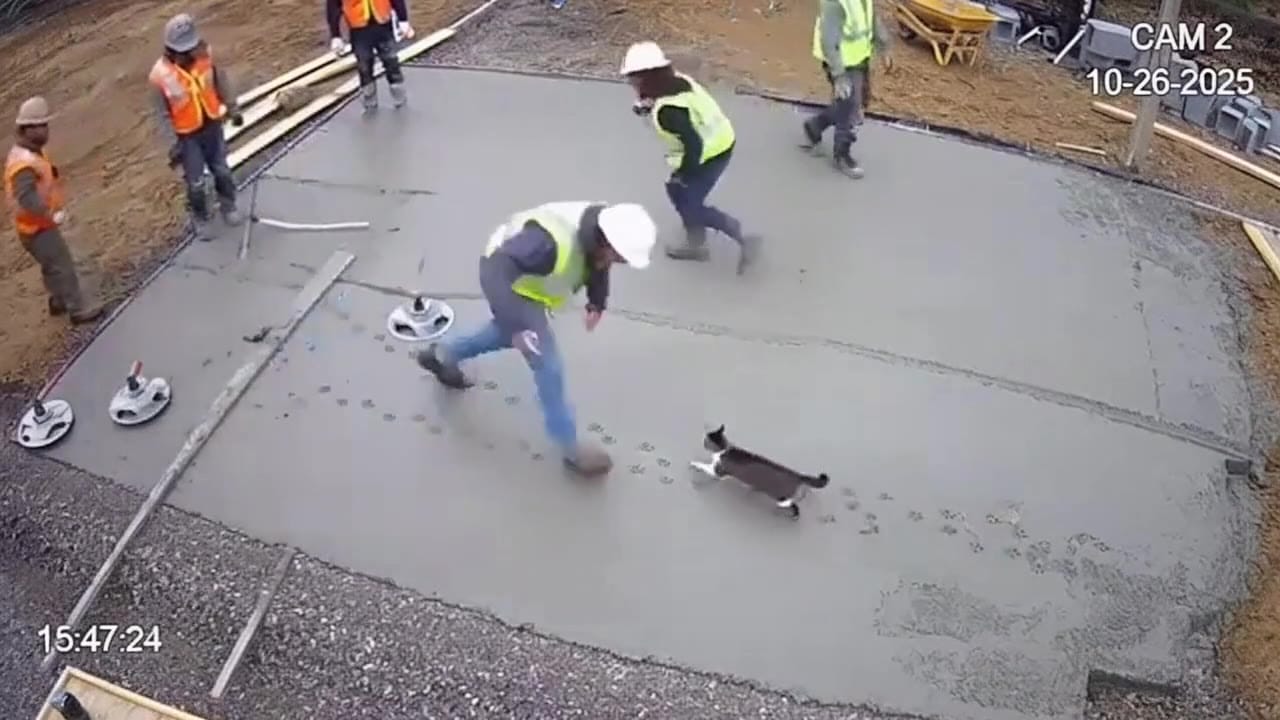
Sora 2 Pro example
8s 16:9 Pro continuity render
1080p route
Use Pro for selected shots that need cleaner delivery.
Synced audio
Keep dialogue, ambience and SFX in the same generation flow.
Text-to-video
Brief a complete short shot with subject, action, camera and sound.
Image-to-video
Use a still frame to preserve composition before motion and audio cues.
Max 12s
Plan tight production beats rather than extended scenes.
Pay-as-you-go
See exact live price before you generate.
Preset Pro totals - see the exact live price in the app before you generate.
$1.56
4s · 720p
$5.20
8s · 1080p
$7.80
Most popular12s · 1080p
$0 extra
Native audio included
12s
4/8/12s · up to 1080p
All prices are MaxVideoAI display prices in USD credits for preset scenarios.
See high-res, multi-beat clips rendered with Sora 2 Pro in MaxVideoAI.
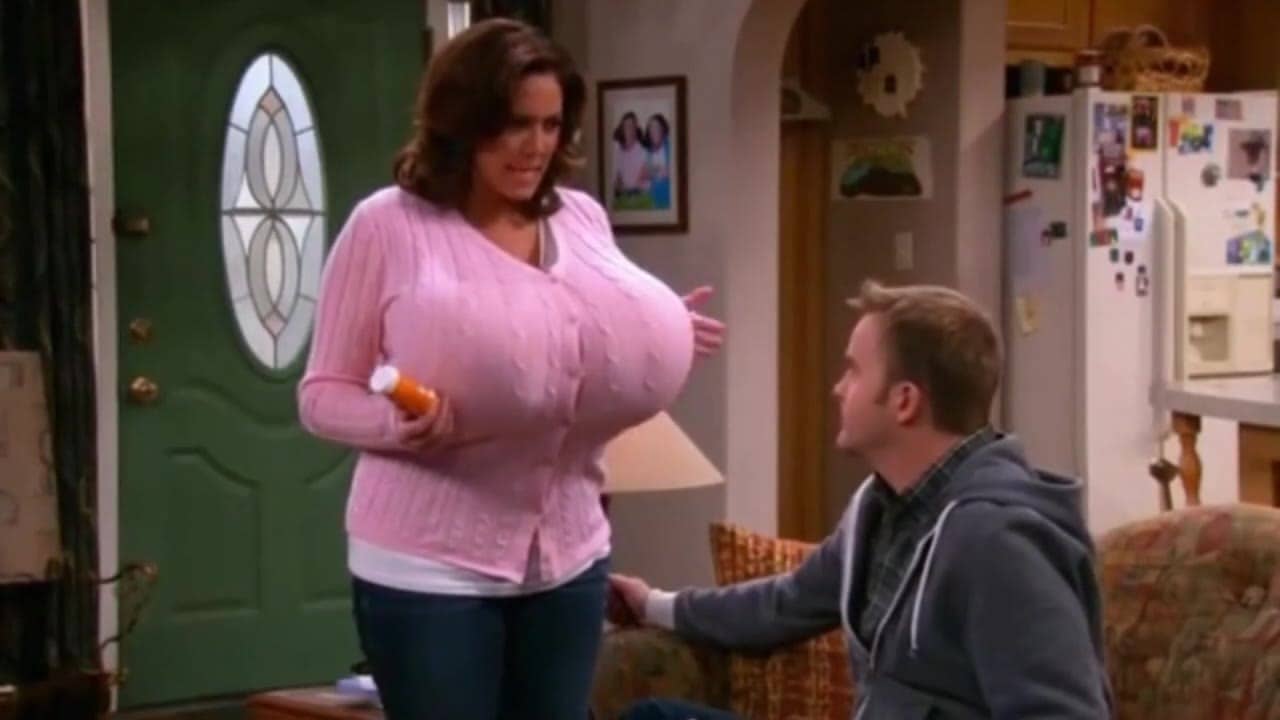
Cinematic
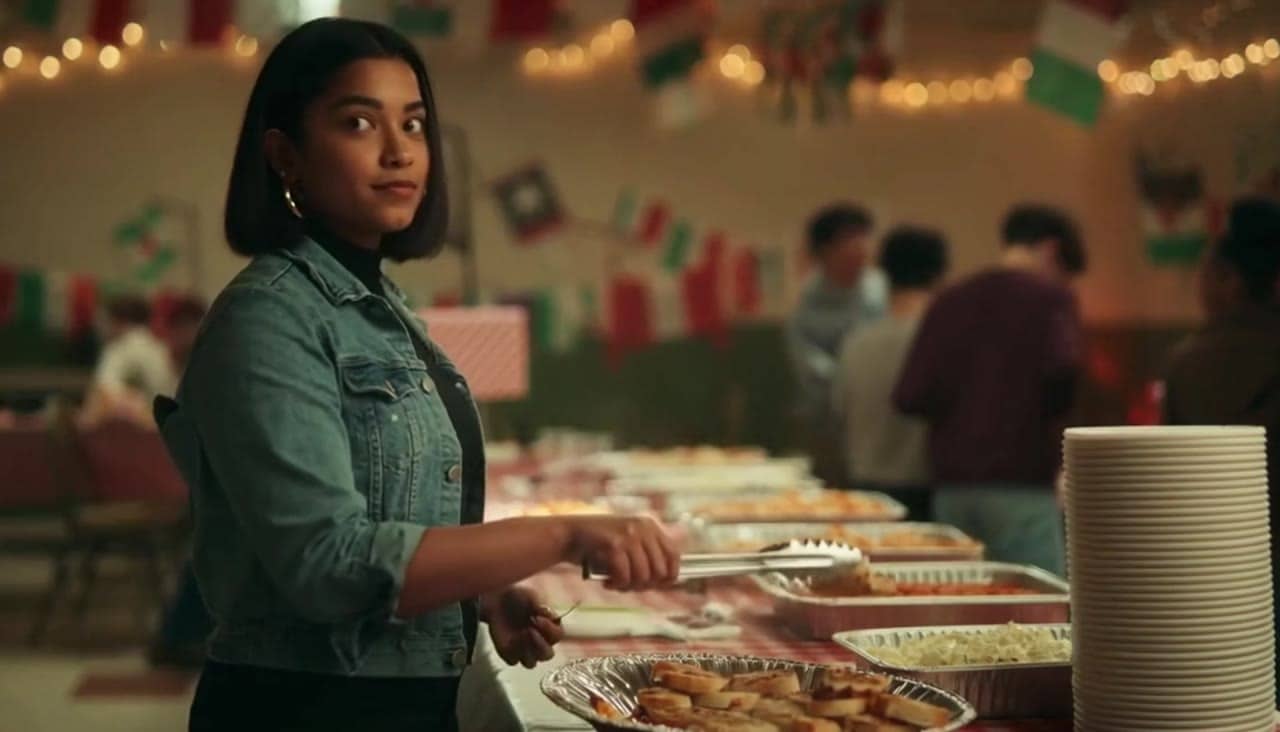
cinematic
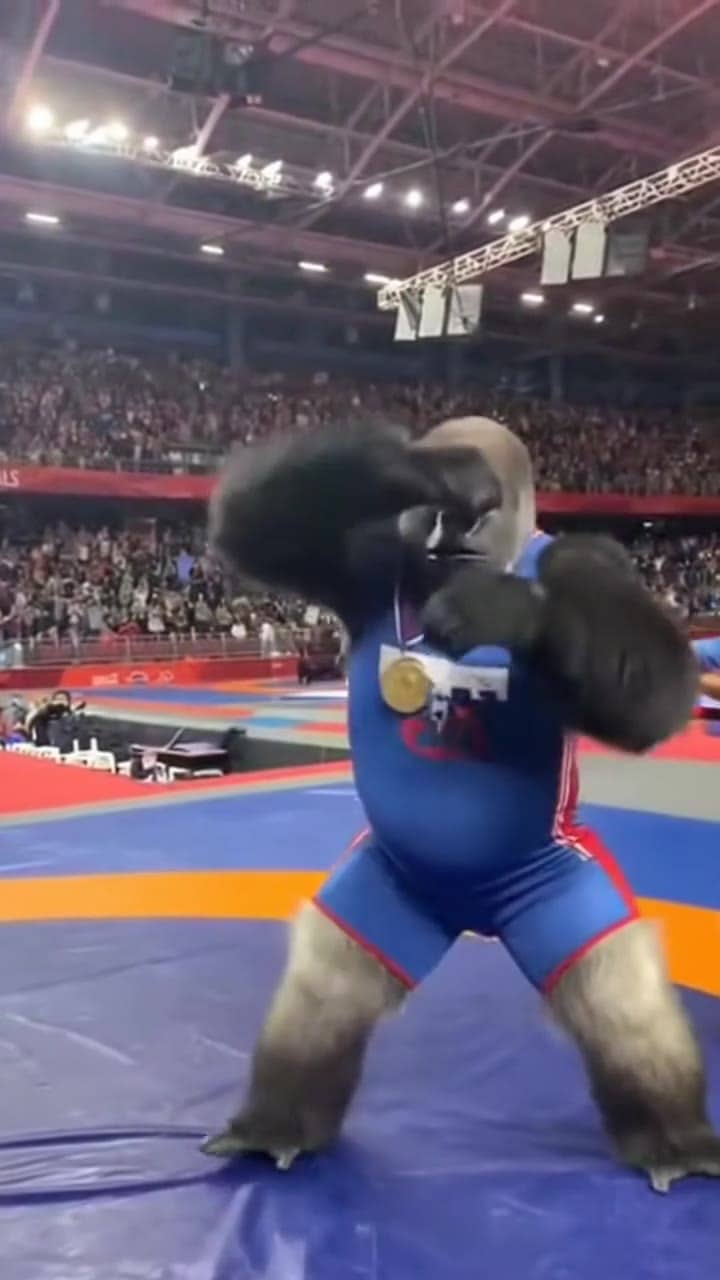
See what's possible with Sora 2 Pro.
Jump into the app with one click and reuse the setup.
Dialogue, ambience and SFX generated in sync.
Keep characters, style and scene consistency across sequences.
Built-in guardrails and safety filters for responsible review.
Use standard Sora 2 for 720p concept passes. Use Pro when a winning shot needs 1080p output and more final-quality review.
Use Pro after the prompt, framing and audio cues are already close. That keeps higher-cost iterations focused.
Compare Sora 2 Pro with Veo 3.1 or Kling 3 Pro when selecting a final route for ads, explainers or cinematic inserts.
Sora 2 Pro works best when the brief separates the shot, the source image role, the synced audio plan and the final delivery constraints.
Source: OpenAI Developers
Use a compact director brief with one clear action, camera move and sound plan.
Start from an approved still when identity, product shape or framing must stay stable.
Separate voice, ambience and SFX so the sound brief does not fight the visual action.
Repeat wardrobe, props, location and lighting when a 12s clip contains several beats.
Prototype in Sora 2, then reserve Pro for the shots worth polishing.
Use this when the shot starts from language only.
Duration / output:
[4s, 8s or 12s] • [16:9 or 9:16] • [720p or 1080p]

Subject:
[Who/what appears + 2 defining traits]

Action:
[One visible action, then one optional reaction]

Camera:
[Shot size + angle + one camera move]

Style / lighting:
[Production look + light source + palette]

Audio:
[Ambience + 1-2 SFX cues or one short spoken line]

Constraints:
No logos, no unreadable text overlays, no extra characters.
Constraints: No logos, no unreadable text overlays, no extra characters.
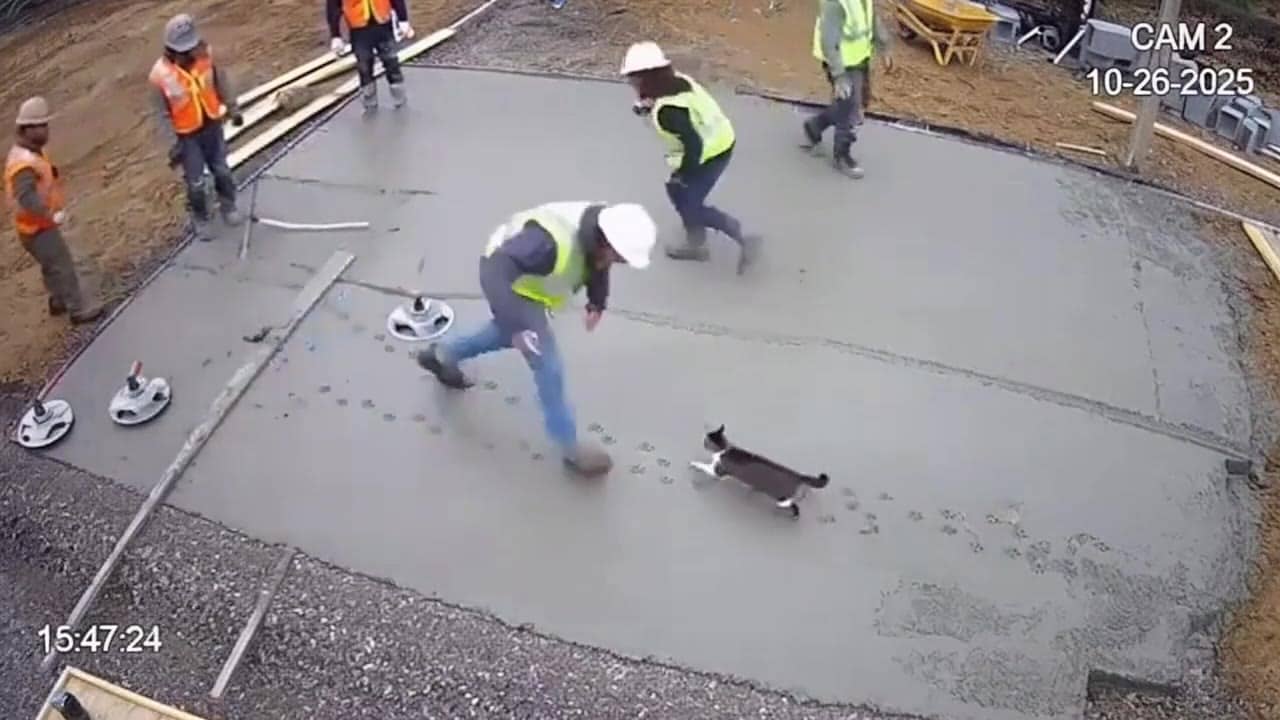
Subject: Cat crossing fresh cement • Action: The cat crosses the site while workers react
Camera: Fixed 16:9 CCTV angle • Style: Believable construction footage, overcast light, wet texture
Audio: Audio off for this render
Single CCTV-style 16:9 shot in an active construction area.
A crew has just poured a smooth wet cement layer. A cat crosses the frame at the wrong moment, leaving paw marks while workers react in the background.
Camera: fixed security-camera angle, slightly compressed lens, no dramatic push-in.
Style: believable site footage, overcast daylight, wet cement texture, practical safety cones and warning tape.
Audio: off for this render.
Format: 8s, 16:9.
Before you generate
Lock the character, fix the viewpoint, or build the source still before you spend credits on motion.
Sora is most predictable when you keep the shot simple, readable, and physical.
These side-by-side comparisons break down price, resolution, audio, speed, and motion style so you can pick the right engine fast.
Each page includes real outputs and practical best-use cases.
Create rich AI-generated videos from text or image prompts using Sora 2. Native voice-over, ambient effects, and motion sync via MaxVideoAI.
Compare Sora 2 Pro vs OpenAI Sora 2 →Generate cinematic Veo 3.1 videos with text prompts, start-image animation, multi-reference guidance, optional last-frame control, and extend workflows in one unified MaxVideoAI model page.
Compare Sora 2 Pro vs Google Veo 3.1 →Direct Kling 3 Pro renders with multi-prompt sequencing, start-frame image-to-video, Kling Elements, and native audio. Generate cinematic 3-15s clips in 1080p.
Compare Sora 2 Pro vs Kling 3 Pro →The limits that shape your renders.
This tier is tuned for cleaner detail and steadier continuity across beats. Use it when you want client-ready polish.
Native sound lands in sync with the visuals, helping emotion and timing. It’s ideal for short ads and narrative beats.
Stay within safe use to keep Sora 2 Pro reliable for production work.
Audio is on by default for lip-sync and sound design, but you can toggle it off in the composer if you only need visuals.
The page shows MaxVideoAI preset totals for common Pro scenarios. The Generate workspace remains the source of truth for the exact live quote before you run a job.
The current MaxVideoAI route exposes 4s, 8s and 12s generations. For longer edits, render multiple clips and stitch them in post.
The current MaxVideoAI route exposes 720p and 1080p outputs. Provider/model-family docs may describe broader capabilities, but this page reflects the route available in the app.
Yes. Upload a still as the starting frame and describe the motion, camera and optional sound cues for the generated clip.
Use Sora 2 for cheaper concept passes and early exploration. Use Sora 2 Pro when a selected shot needs higher-quality review, stronger polish and the Pro route.


